Homemate Curtain node smart switch
What you need to get started
- HomeMate Smart Curtain node switch
- Phone must be connected to 2.4 Ghz WiFi network only (and not 5 Ghz).
- Location should be ON.
- Mobile Bluetooth should be ON.
Download app and Register account
- Download HomeMate Smart App from App Store or Google Play.
- Use link to download HomeMate Smart app - https://a.smart321.com/homematesmart
- You can scan the QR code below to download the HomeMate Smart App:
You can also search “HomeMate Smart” in either App Store or Google Play to install the App.
2. Open App and register your account.
3. Create Home in Home Management Setting.
4. Set location.
Curtain Node Smart Switch Connection Diagram
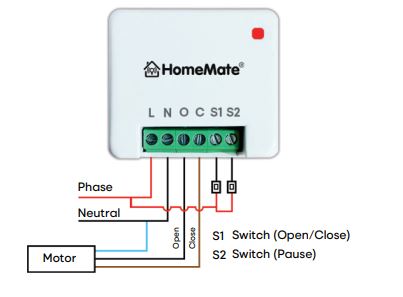
Identify the Line (Phase) and Neutral wires in the switchboard and ensure they are properly separated.
Take the Smart Switch and connect the Line and Neutral wires to the input terminals of the curtain node switch.
Connect all the curtain motor wires to the corresponding terminals on the curtain node.
Verify all connections, including: Line and Neutral connections, Forward wire (O – Open), Reverse wire (C – Close).
Ensure all connections are secure and correctly matched before powering on the system.
Pairing of HomeMate Curtain Node smart Switch with HomeMate Smart app can be done through 2 process flow in app. If Process 1 fails, try Process 2 :
Process 1: Auto-detection using Bluetooth
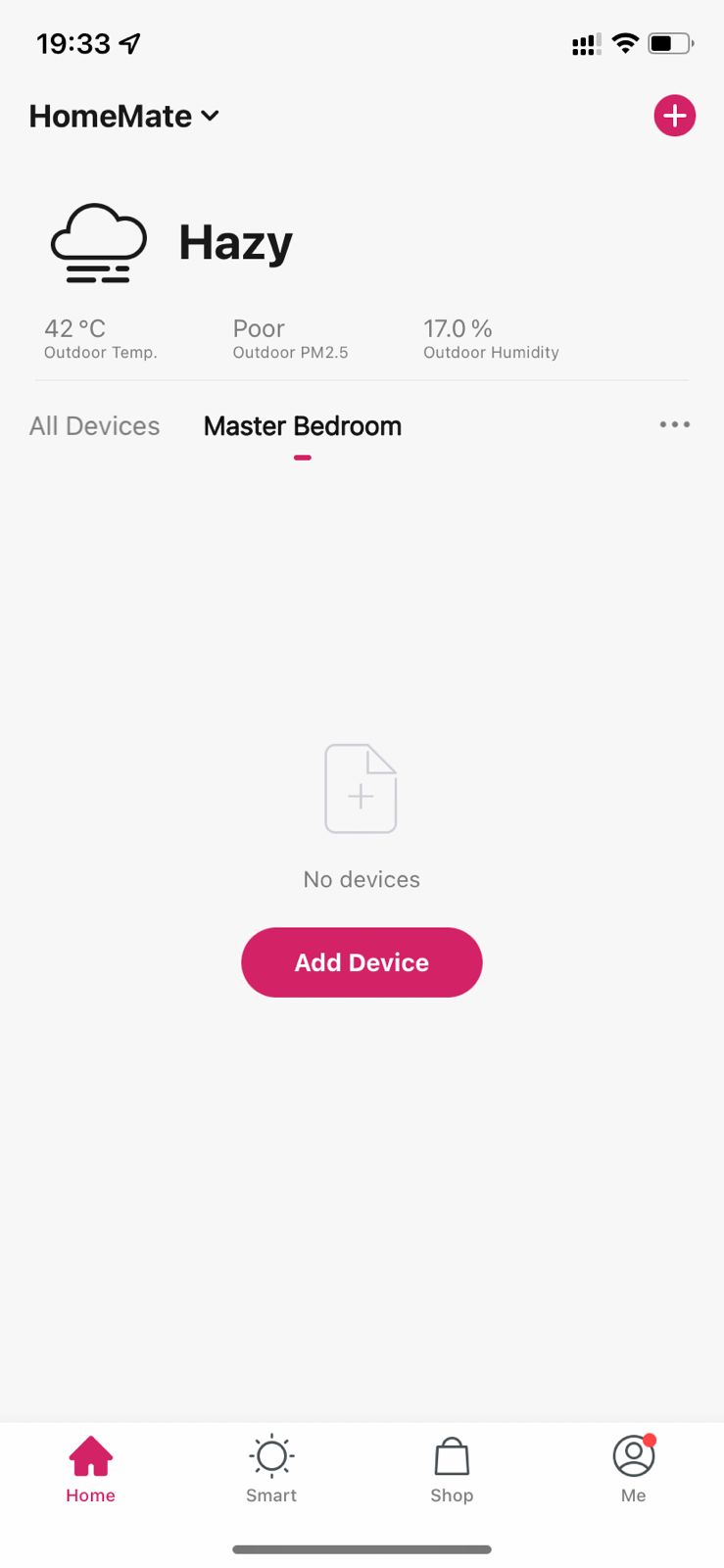 Steps to connect HomeMate Curtain Node smart Switch with HomeMate Smart App
- After giving input and Load connection to the Curtain Node smart Switch check if the Wi-Fi LED is blinking. If it is not blinking, follow the below steps.
Turn it on- off through manual switch (S1) 7 to 8 Times Until the RED light starts Blinking. - Connect your mobile with home Wi-Fi(2.4Ghz).
- Bluetooth and location must be On.
- Open the HomeMate Smart App.
- Tap '+' at the top right corner or 'Add device' button on the Home screen.
- It will automatically show the nearby device ready to be paired.
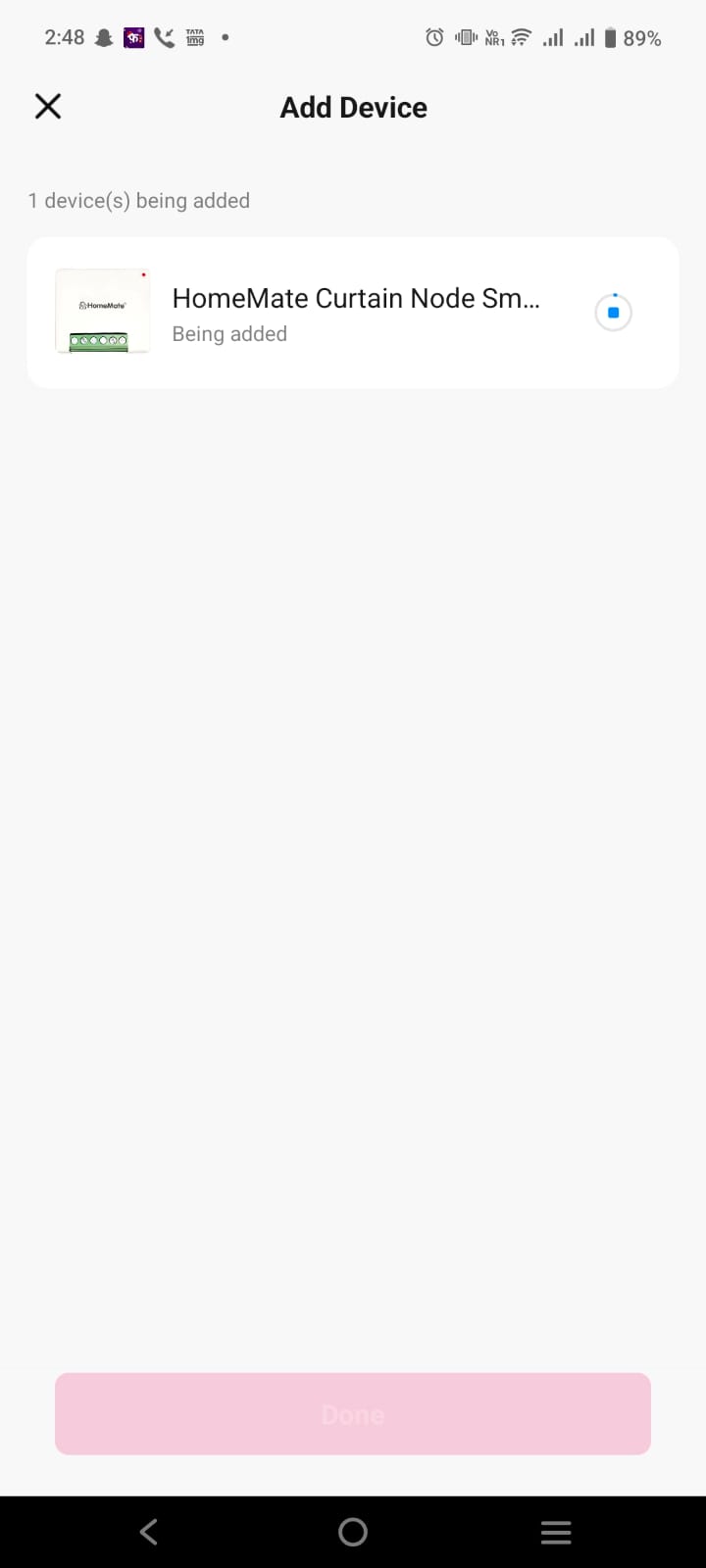
- Tap on "Go to add"
- Tap '+' at the top right corner to add the device.
- Enter Wi-Fi Password then tap on "Confirm".
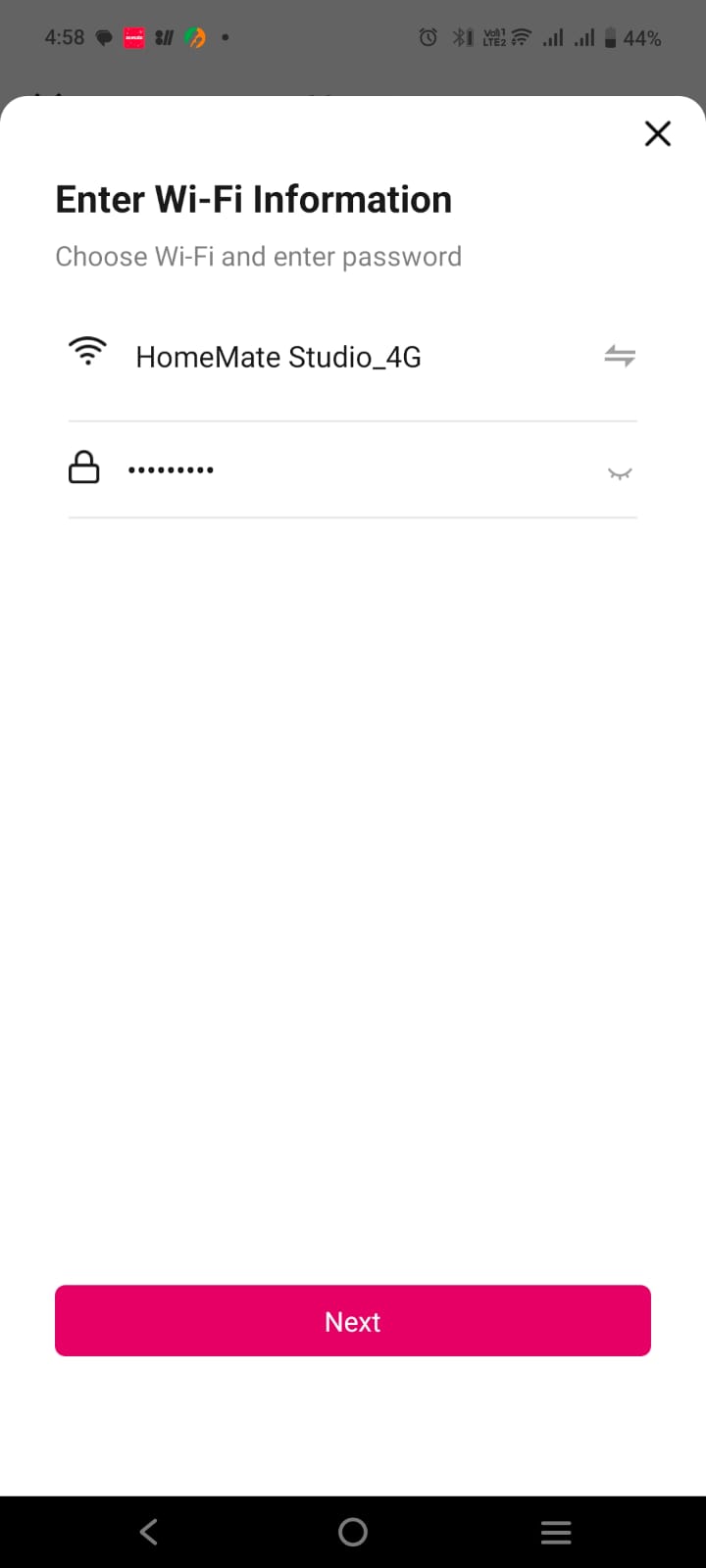
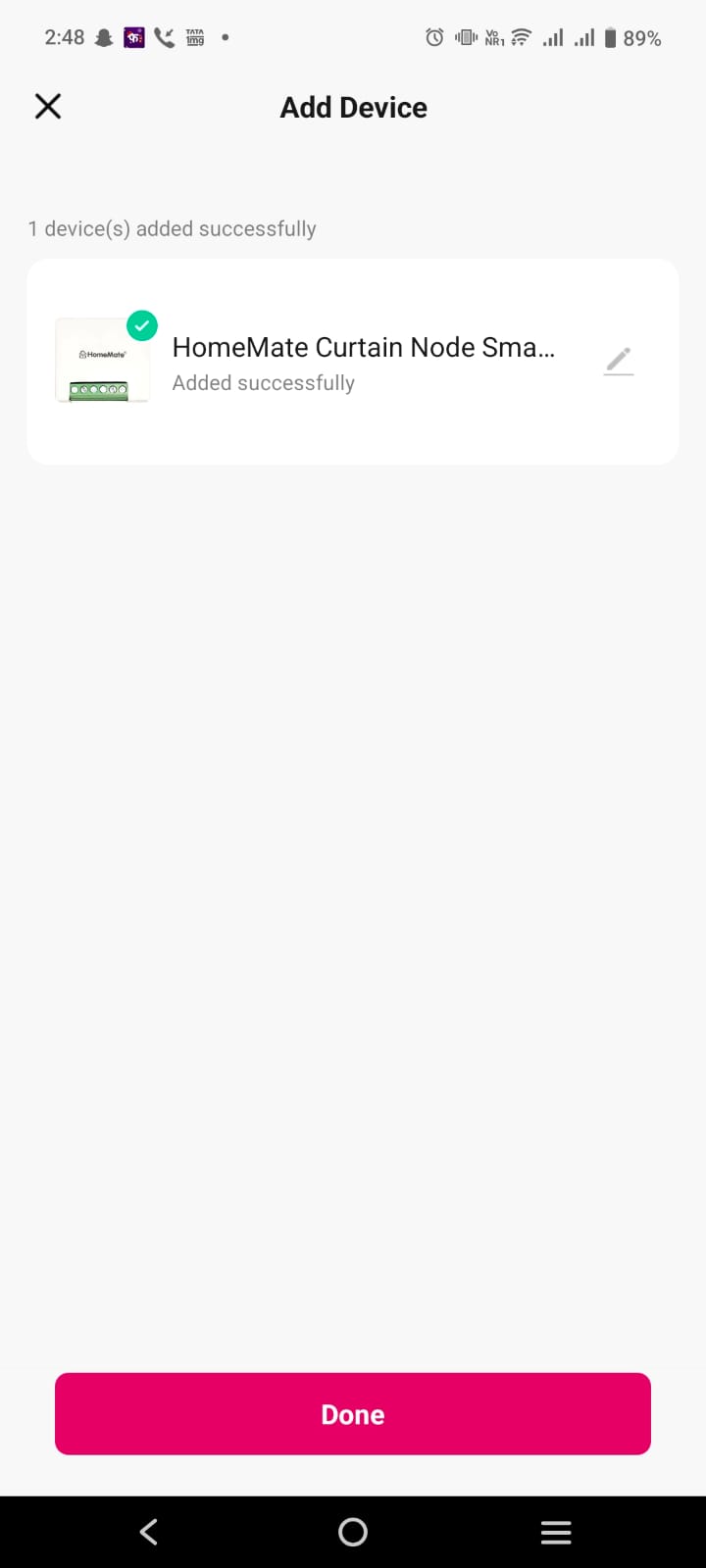
- It will connect to the HomeMate Curtain Node smart Switch.
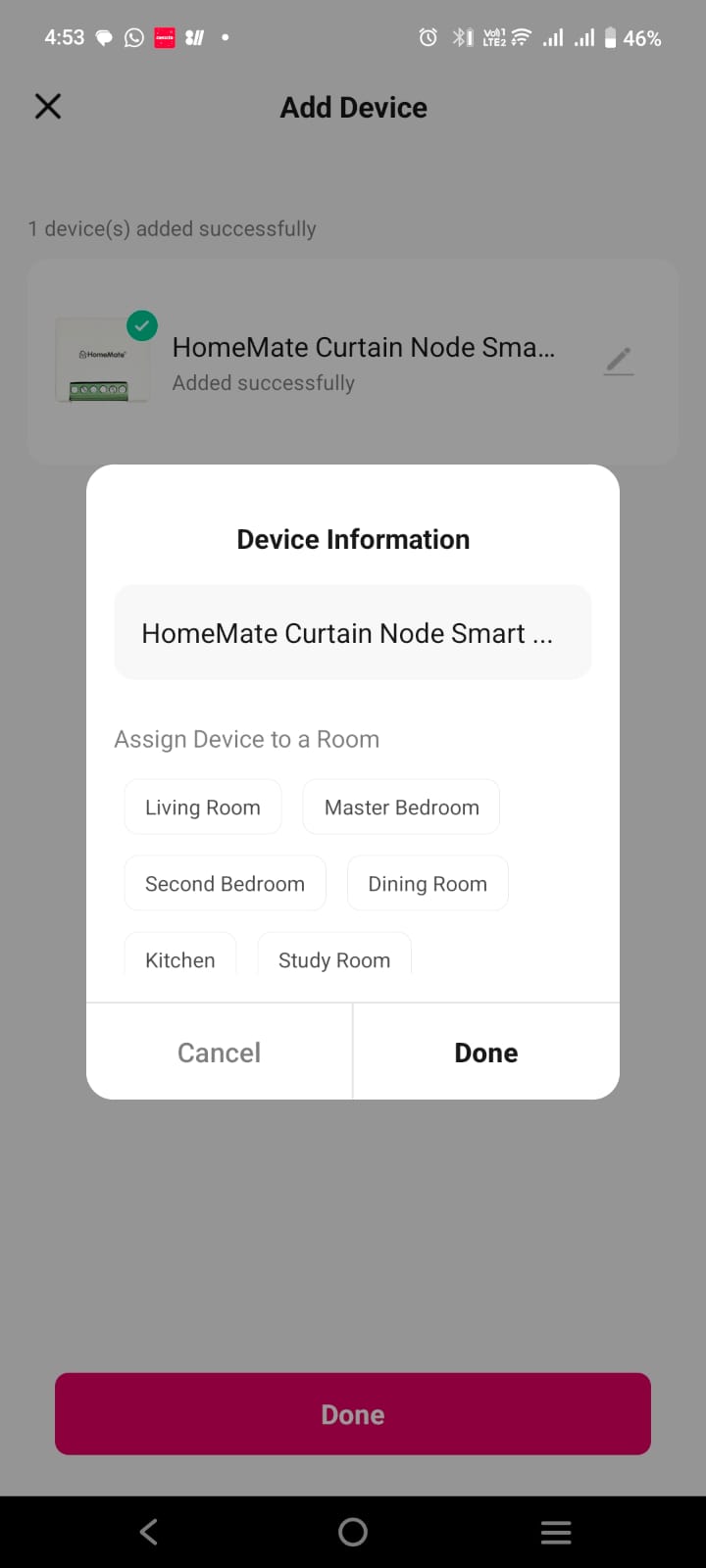
- After adding you can edit the name of the HomeMate Curtain Node smart Switch.
- Tap on pencil mark located after Curtain Node Smart Switch.
- Type the desired name tap on "Save" then tap on "Done" located on the Top right corner.
Turn it on- off through manual switch (S1) 7 to 8 Times Until the RED light starts Blinking.
Process 2: Using Search device Wi-Fi process flow:
Steps to connect curtain Node smart Switch with HomeMate Smart App
- Install the HomeMate Curtain Node smart Switch to its place and give electrical connections.
- Connect your mobile with home Wi-Fi(2.4Ghz).
- Bluetooth and location must be On.
- Open the HomeMate Smart App.
- Tap '+' at the top right corner or 'Add device' button on the Home screen.
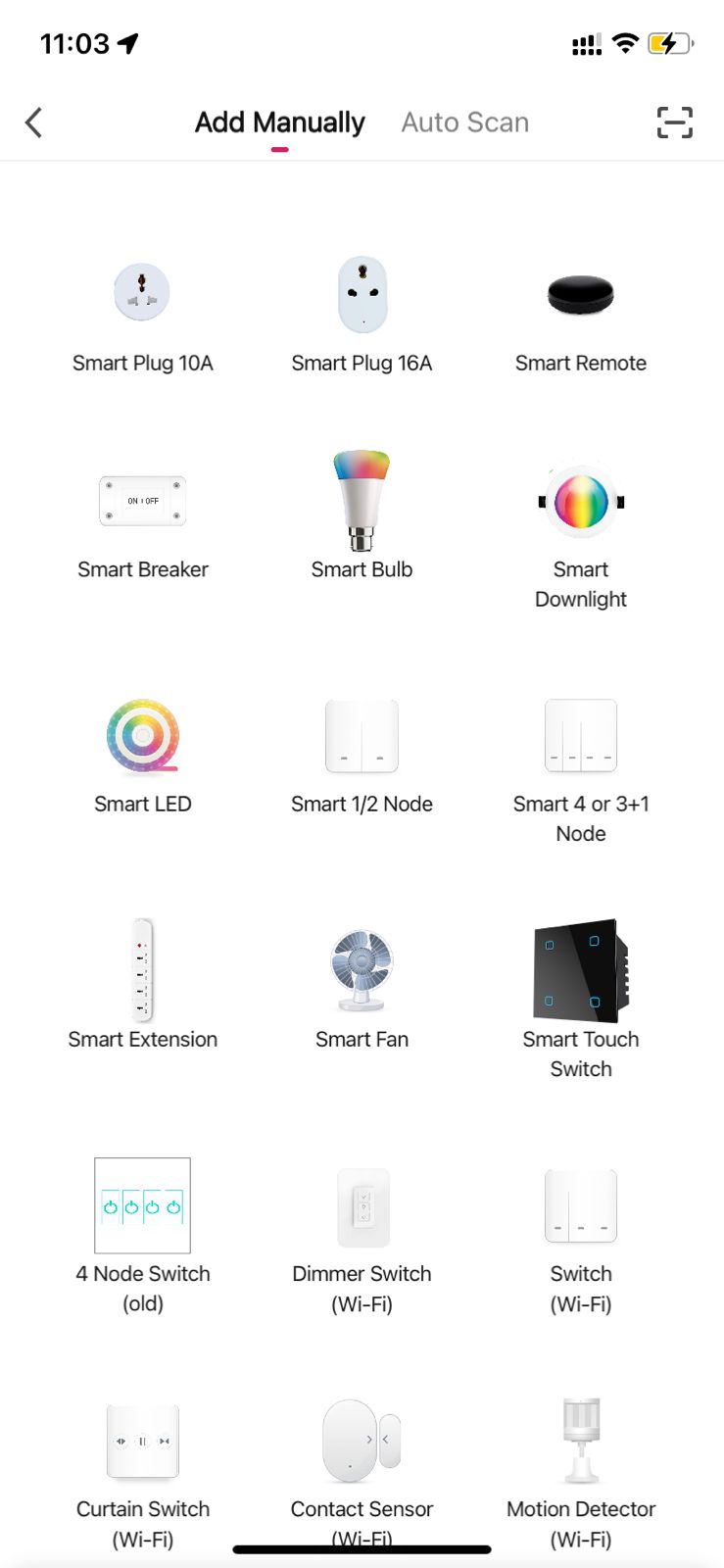
- Select Smart 1/2 Node.
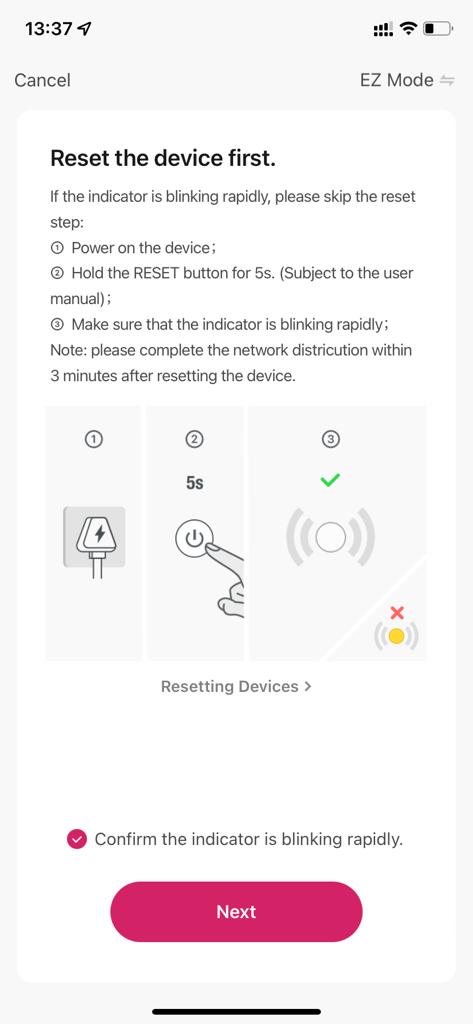
- Make sure that Smart curtain Node Switch flashes and then tap "Confirm indicator rapidly blink" to go to next step, If the indicator is not flashing quickly, Turn it on- off through manual switch (S1) 7 to 8 Times Until the RED light starts Blinking.
- Select Wi-Fi 2.4Ghz and type the password then tap on "Next"
Add successfully message appears once device is connected.
Add successfully message appears once device is connected.
Important links:
For Alexa linking process, click here.
For Google Assistant linking, click here.
For whatsapp support, click here
HomeMate Smart Fan Retrofit Kit purchase links: Website - Click here and Amazon - Click here
For any issue or query, mail us at support@homemate.co.in or call +91-838-404-8232 between 10 am to 6 pm from Monday to Saturday